Friday, 13 December 2013

Remove Autorun.inf Virus from Pendrive Easily Without Antivirus

Remove Autorun.inf Virus from pendrive Easily - Without Antivirus!!

Anyway, As we know Our Antivirus (Basically, Avira, Avast, AVG, etc), Only detects Virus i.e autorun.inf whenever you insert your removable disk (Pen Drives). But our AntiVirus can’t disinfect it nor delete it.

The autorun.inf is hidden and it can’t be remove or disinfected by Anti virus.

First Go to Windows >Start Run>CMD type CD\

open your pendrive in command prompt whether it is f:\, g:\, h:\ and so on.

Type "attrib -b -r -s autorun.inf" and press enter.

type "del autorun.inf" and press enter.

1. Open Notepad
2. Do not write anything in it.
3. Save as (any where in USB Pendrive) with name "autorun.inf"
4. Go to file properties of the "autorun.inf" and click read only.


If you make read only option no one virus cannot able to change it in future.

How to Disable Autorun in Windows XP

To disable autorun in Windows XP Professional, do the following: 

Start > Run > gpedit.msc 
(Left Pane) Computerer Configuration > Administrative Templates > System 
(Right Pane) Set "Turn off autoplay" to "Enabled" 

(In the snap-in, it says, "Note: This setting does not prevent autoplay for music CDs." This means that the audio tracks on the CD will still play automatically--however, it *will* disable autoplay on the "data track" of the CD, which is what runs arbitrary code, like installers for evil DRM software, automatically.) 

To disable autorun of CD/DVD and USB Flalsh Drives in Windows XP Professional/Home Edition, do the following: 

Start > Run > regedit 
Find HKEY_CURRENT_USER\SOFTWARE\Microsoft\Windows\Policies\Explorer 


Make a new value called NoDriveTypeAutoRun of type DWORD. Make its value 0x000000b1 (hex). 
Reboot to be sure it takes effect. 

To re-enable autorun , go back and set the value to 0x00000091 (hex).


To disable autorun in Flash Drive make its value 0x00000095 (hex).  

To disable autorun
in CD/DVD drives and USB flash Drives Make its  value to 0x000000B5 (hex).

How to Disable CD Autoplay in Windows

To disable autoplay in Windows XP Professional, do the following: 

Start > Run > gpedit.msc 
(Left Pane) Computerer Configuration > Administrative Templates > System 
(Right Pane) Set "Turn off autoplay" to "Enabled" 

(In the snap-in, it says, "Note: This setting does not prevent autoplay for music CDs." This means that the audio tracks on the CD will still play automatically--however, it *will* disable autoplay on the "data track" of the CD, which is what runs arbitrary code, like installers for evil DRM software, automatically.) 

To disable autorun in Windows XP Home Edition, do the following: 


1. 
Click Start> Run> regedit
     Find HKEY_LOCAL_MACHINE\SYSTEM\ CurrentControlSet\Services\Cdrom

     Double click “Autorun” the value is set to "1" by default, change it to zero. Click OK 

     Now restart, that’s it!

2. Start > Run > regedit 
    Find HKEY_CURRENT_USER\SOFTWARE\Microsoft\Windows\Policies\Explorer 


    Make a new value called NoDriveTypeAutoRun of type DWORD. Make its value "0x000000b1" (hex). 
    Reboot to be sure it takes effect. 

    To re-enable autorun in Windows XP Home Edition, go back and set the value to "0x00000091" (hex).

Files Types Tab not found in Windows XP

 Windows XP allowed you to edit this via the Windows file system explorer menu Tools > Folder Options... dialog, the File Types tab. There you could define which program is associated with each file extension


If you pushed Advanced" you could then view the various file operations that could be performed.  


And you could redefine how the programs were actually invoked to perform each action:

1. Re-Registering DLL files:    Go to Start =>Run and type in the following commands. Press Enter after each one. There's a
   Space before and after /i

   regsvr32 /i browseui.dll 
   regsvr32 /i shell32.dll


   Then restart your computer.

2. Changing in Regedit Key:
   Edit the registry to get the folder options back.
   

   Go to Start, Run then type in regedit and click Ok.
   

   Browse to the following key: HKEY_CURRENT_USER\Software\Microsoft\Windows\CurrentVersion    \Policies\Explorer
 

   Find the NoFolderOptions key and change the vaule to 0 assuming you have this registry key.
   Restart your computer.

3. Check your computer's policy to make sure its not disabled.
   

    Click on Start, Run and type in gpedit.msc and navigate to the following location:
    User Configuration\Administrative Templates\Windows Components\Windows Explorer.
    On the right side, set Remove the Folder Options menu item from the Tools menu to Not             Configured by double clicking it and setting the appropriate option.

How to Stop Internet Explorer from Opening dowloaded Zip Files

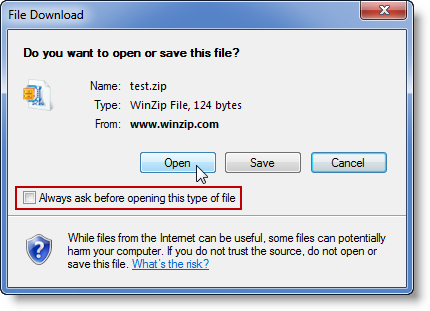
     When you download a file, such as a Zip file, using Internet Explorer, the File Download dialog will open and allow you to choose whether you want to Open or Save the file. This dialog typically includes a check box labeled Always ask before opening this type of file which is checked by default. This insures that the dialog will continue to display at other times when you download the same type of file.  

However, if you uncheck this box and choose to Open the file being downloaded (see the picture below), the next time you attempt to download another file of this type you will not have the opportunity to choose whether to open or save the file. The File Download dialog will no longer appear.
File Download dialog with box unchecked
Please see the steps below if you want Internet Explorer to display the File Download dialog for this file type again. Please see the steps below if you want Internet Explorer to display the File Download dialog for this file type again.
Note: The latest versions of Internet Explorer on Windows 8 and Windows 7 do not offer an "Always ask..." checkbox. This issue should not occur in such cases.

Windows 7 / Windows Vista

Unlike earlier versions of Windows, there is no option offered in a user interface for resetting or changing this behavior. The only way, of which we are aware, for setting this back to the default without resetting all Internet Explorer zones is by editing the Windows Registry.
To begin, do this:
  1. From the taskbar, click on the Start button
  2. In the field directly above Start type: regedit
  3. Press the Enter key on the keyboard
  4. Browse to:
HKEY_CURRENT_USER\Software\Microsoft\Windows\Shell\AttachmentExecute\{0002DF01-0000-0000-C000-000000000046}
Note: {0002DF01-0000-0000-C000-000000000046} is the Class ID for the InternetExplorer.Application object.
Inside this registry key, there will be a list of value data corresponding to all the file types for which you have unchecked the Always ask before opening this type of file box. For example, if WinZip automatically opens Zip files you download, you will see WinZip in the list. Deleting the WinZip entry from this list will reset the behavior for all files that would normally be opened by WinZip.

Another option would be to do the following:
  1. Open Internet Options from the Control Panel
  2. Click the Security tab
  3. Click the Reset all zones to default level button
    Note: By doing this all custom changes you have made will be reset to the default
  4. Click OK

Windows XP

  1. Open Windows Explorer or My Computer
  2. Choose Folder Options from the Tools Menu
  3. Click the File Types tab
  4. Scroll down the list of Registered file types to ZIP (or ZIPX), click this to select it, and click the Advanced button
  5. In the resulting Edit File Type dialog, check the box labeled Confirm open after download, and then click OK
  6. Click OK in Folder Options
Now, when you download a Zip file (.zip or .zipx) using Internet Explorer, the File Download dialog will display again and will ask if you want to open the file or save it.


Files Types Tab not found in windows 7

There is no file types tab in Folder options in Windows 7?


Earlier Windows Versions (e.g., XP) allowed you to edit this via the Windows file system explorer menu Tools>Folder Options..... dialog, the File Types tab.  There you could define which program is associated with each file extension
Then you must be wondering as to why the ‘File Types’ tab is missing from the ‘ Folder Options’ dialog (accessible from Windows Explorer Organize menu). Well, Windows 7 no longer has the ‘File Types‘ tab in Folder Options. File Types has now become Default Programs of Start Menu. 
Want to change the default program with which a file is opened upon double click? For this you need to set an association between the file extension and a program used to open it. Here is how you can do this in Windows 7:

1. Click on ‘Default Programs’ of Start Menu. This can be found in the right pane.
2. The Default Programs item of Control Panel opens up. Click on Associate a file type or protocol with a program.


3. In the next screen, you can view all file extensions and their file types. In order to change the default program for a file extension, chose the extension and click Change program… This will open the Open with dialog. (Alternatively the ‘Open with’ dialog can also be accessed on most files by right clicking the file and selecting ‘Open with’ –> ‘Choose default program)

4.The current default program along with other recommended programs is displayed in the top section. Click on the chevron(down arrow) of Other Programs.


5. Choose one from the available list or click on Browse and select a program to make it the default program for that file extension.

From now on Windows will always open the newly selected program whenever you double click or click Open on files of that extension.

Uninstall Hidden Devices Drivers and Services

This tutorial describes the steps used to remove unwanted devices, drivers, and services from the device manager. These instructions can be used with Windows 2000, XP, Server 2003, Vista and Windows 7.

Have you had drivers or devices that will not go away even though you are sure you have uninstalled them? Have you replaced your old 100Mbps network card with a faster Gbps adapter, but you cannot re-assign it the same IP address because your system insists there is still an adapter installed with that same IP address?

The system also insists that you forgot to remove the driver before removing the old card. Unwanted items in the device manager can cause numerous problems such as these. To get rid of unwanted drivers, devices, or services, use the following steps:

1) Open the Start menu and choose Run.
2) Type in cmd and click OK.
3) At the command prompt, type in set devmgr_show_nonpresent_devices=1 and press Enter. (Note          that nothing seems to happen. This is expected. You are actually setting an environment variable which is
     going to help you to see hidden devices.)
4) On the next command prompt line, type devmgmt.msc and press Enter. This will launch the Windows           Device Manager Console.
5) In the Device Manager Console, from the View menu, select Show Hidden Devices.

As you expand the different drivers and devices in the device manager, you will see not only the items that Windows currently detects as installed on your PC; but you will also see drivers, devices, and services which have been loaded in the past but were not uninstalled or are not currently started.

You can find your offending device, right-click, and choose uninstall to remove it from the system completely.

Note that non-loaded devices, drivers, and services are “grayed” out, but that does not necessarily mean that you should delete all of them. Only remove items you know you do not need.

Be careful that you do not change too many devices, or you might need to re-activate your Windows installation. Finally, if you accidentally exit the Device Manager Console you will need to start over again at the command prompt.

To close the command prompt window, type exit.

Saturday, 7 December 2013

5 Ways to Re-enable Registry Editor When Disabled By Virus

We have already discussed how to re-enable task manager and other problems that can be solved by using the Windows Registry Editor. Now, users may experience a serious dilemma if the Registry Editor itself is disabled. This can be due to a Trojan, virus, spyware or a Malware infection to your system. Whenever this occurs, an attempt to start the editor results in the appearance of a  message declaring that “Registry editing has been disabled by the Administrator”.

This creates a setback to the solutions of various other problems using the Registry Editor. However, how much complicated this problem may seem, it’s certainly not incurable. In fact, we, in this article will discuss how simple it is to re-enable your Registry Editor. The fixes that we show here, work in Windows XP, Windows Vista and also in Windows 7.


Fix 1 : From the Run command


Click on the “Start” button and then select “Run”, or simply press “Windows Key+R”. The Run application starts and in the box copy and paste the following line :
REG add HKCU\Software\Microsoft\Windows\CurrentVersion\Policies\System
 /v DisableRegistryTools /t REG_DWORD /d 0 /f

Click OK and then reboot your computer. On restart, the Windows Registry Editor is re-enabled.

Fix 2 : By removing the regedit.com file

Another simple solution to re-enable your Registry Editor is to rename the “regedit.com” to “regedit.exe”. Sometimes, some viruses or malware loads a “regedit.com” file in the system. This “.com” file is usually a zero byte dummy file which either replaces the actual “regedit.exe” file or is added as a new file.  Now, when you type “regedit” in the “Run” box, this “.com” file is executed rather than the actual “.exe” file, since “.com” files get a greater preference than “.exe” files in the process of execution of a program.
  1. Open the drive where the Windows operating system is installed.
  2. Then open the folder named “WINDOWS” in that drive.
  3. Notice if the file “regedit” is a “.com” zero byte dummy file or not.
  4. If it is so, then delete it permanently.


In case of invasion of a worm named “W32.Navidad”, the “regedit.exe” gets renamed to “regedit.com”. In such a case you just have to rename the “.com” file by “regedit.exe”. You will now be able to access the Registry Editor normally.

Fix 3 : By editing the Group Policy

At first go to Start > Run or simply press “Windows key+R”. Type “gpedit.msc” in the Run box and click OK.


The Group Policy Editor opens up. Navigate to User Configuration > Administrative Templates>System. Now, on the right hand part of the Group Policy Editor, in the “Setting” column, double click on “Prevent Acess to Registry Editing Tools”.


The Properties box appears and here, change the property to “Not Configured”. If it is already so, select “Enable” and apply it. Then repeat the Fix 3 process to change the setting to “Not Configured”. This removes the Disable Registry Tools value successfully. Click on Apply, then OK and exit the Group Policy Editor.


Reboot your system. On resuming from the restart, the Registry Editor is enabled once again.

Fix 4 : By VB script

A different way to solve this problem is by using a Visual Basic script. Depending upon its position in the registry, the script enables or disables the Registry Editor. Doug Knox, a Microsoft Professional, created such a VB script “reg_enable.vbs”. Download this VB Script. Save this on the Desktop in your system. Make sure to save this file with the extension “.vbs”.


Now follow the steps below :
  1. Double click on the downloaded file to run it.
  2. If you are prompted for an Administrative Password, enter it and press ENTER.
  3. After this is done, restart your computer.
Your Registry Editor is re-enabled on completing reboot.
Instead of double clicking on the file, you may also open a Command Prompt window by clicking Start > All Programs > Accessories > Command Prompt.
  1. Now, type cd /d %userprofile%\desktop . [Replace %userprofile% by the Windows profile name of the user].
  2. Then type wscript.exe  reg_enable.vbs and press ENTER.
  3. Type EXIT and press ENTER to close the Command Prompt window.
The Disable Registry Tools policy gets removed and your can access Registry Editor normally.

Fix 5 : By installing the UnHookExec.inf

Sometimes invasions by trojans, worms etc. edits the shell > open > command registry entries. Each execution process of an “.exe” file, executes the virus. In such a case,
  1. Visit the Symantec website and download the “UnHookExec.inf” file.
  2. Save this file on your desktop making sure that the file extension is “.inf”.
  3. Right click on this file and choose to install.
  4. With the process completed, restart your system.


Resuming Windows after reboot, restores the command registry entries and the Registry Editor is re-enabled.
Any of the above 5 fixes can be used to re-enable the Registry Editor. These fixes work in all versions of Windows.


Ramnit.A Virus Removing Method


How to Remove W32/Ramnit.a

  • Temporarily Disable System Restore (Windows Me/XP).[how to]
  • To be able to identify even the most recent variant of W32/Ramnit.a, open your antivirus application and update the virus definition file.
  • Start Windows in Safe Mode with Networking.
          - From a power-off state, turn on the computer and press F8 on your keyboard repeatedly.
          - Your computer will display Windows Advanced Boot Options menu. Please select Safe Mode 
             with Networking.
          - The system will now boot Windows and loads only necessary drivers and files.
  • Open your antivirus program and run a full system scan. After the scan, delete all infected items. If unable to delete, better place them in quarantine. Once the scan is complete, please proceed with the next step.
Alternative Removal Method for W32/Ramnit.a

Option 1 : Use Windows System Restore to return Windows to previous state
If W32/Ramnit.a enters the computer, there is a big chance that Windows files, registry entries and other essential components are also infected. System Restore can reinstate clean system files by restoring the configuration to an earlier date. The method also replaces compromised files with a clean version. If you have a saved restore point before W32/Ramnit.a infiltrates the PC, we highly encourage you to execute this procedure if none of the above works. You may proceed with Windows System Restore, click here to see the full procedure.
Stinger is a portable security tool that can detect and remove particular viruses. It utilizes a highly developed scan engine technology that includes process scanning and scan function optimization.

  • Go to McAfee Labs Stinger web page and download the tool. Save it to your desktop.
  •  Once the download completes, double click on the file to run the program.
  •  The Stinger main program will open.
  •  Default directory to scan is the system drive (C:\). You may add additional drives to scan by clicking on Add button.
  • Click on Scan Now button to begin scanning assigned drives.
  • Stinger will now scan and repair/delete all infected files.
  • When done, you may now close McAfee stinger and restart Windows in normal mode.


Windows XP System Restore Guide

System Restore:

This tool is very useful when experiencing system crashes due to corrupted files. Incomplete installation of programs or drivers, also virus infection causing troubles can be resolve with this tool.

Windows XP  Users:

This is when you take your computer back to an earlier time, typically done when something goes wrong with your PC. You simply select a Restore Point from a list, and then restart. The settings for System Restore can be found on the System Properties dialogue box.
To bring up System Properties,

     -  Click Start, Control Panel, From the Control Panel, click Performance and Maintenance, double                   click System.

    -  Click Start, Click Programs, and then Accessories, Click System Tools and open System
        Restore
If you're unable to find System Restore and have administrator rights try opening the System restore through the run line by following the below steps.
Click Start, Click Run, Type: restore/rstrui, Press enter.

- Right click the My Computer on your desktop. From the menu, select Properties. A keyboard shortcut    is to hold down the Windows Logo key in the bottom left of your keyboard. Keep it held down and    
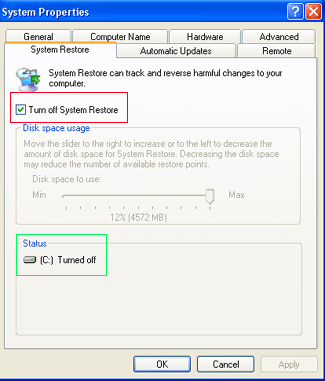
   press your Pause/Break key. Click the System Restore tab. If system restore is enabled you will see    an image like Figure 1 below.

To disable system restore you should follow these steps.

To activate System Restore, make sure there is NO tick in the box "Turn off System Restore on all drives".
WARNING: By disabling system restore you will delete all stored restore points


                          Figure 1. Disabling System Restore

To disable system restore you should follow these steps.

To activate System Restore, make sure there is NO tick in the box "Turn off System Restore on all drives".
WARNING: By disabling system restore you will delete all stored restore points.

To enable system restore you should follow these steps.

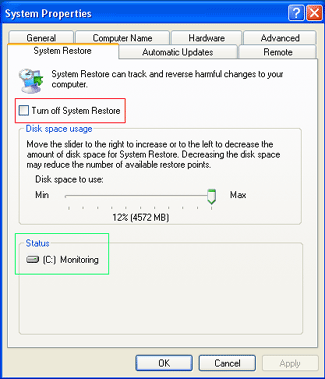
By default system restore is enabled on Windows XP machines, so there is a good chance that it is already enabled if this is your first time working with system restore.
You should first go into the Control Panel and then double click on the System icon. If you are in the control panel and do not see the System icon, then click on the link that says "Switch to classic view" in the upper left hand side of the window. Now you should be able to see the System icon. After you double click on it you should then click on the System Restore tab. If system restore is turned off you will see an image like Figure 2 below.


                   Figure 2. Enabling System Restore

               .  If you see in the Status section, designated by the green box, that it is Monitoring a partition, then system restore is already enabled and you do not have to do anything further. If it is showing that it is turned off as seen in Figure 2 above, then you should uncheck the checkbox labeled "Turn off System Restore", designated by the red box, and then adjust how much disk space you want to allow system restore to use, which is by default 12 percent of your entire disk space.
When you are done with making your settings, you should click on the apply button. Since you are turning system restore back on, a new restore point will automatically be made. After the new restore point is made, you should see in the status section that system restore is monitoring the partition; which means it is enabled.
Clicking the Settings button just brings up a box with a slider on it. This lets you adjust how much hard disk space to let Windows XP use for your Restore Points:


Settings for System Restore
Figure 3. Monitoring Drive and Disk Space

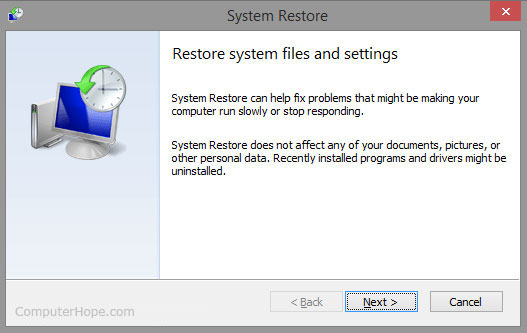
System Restore Window

Once in the System Restore window as shown in the below example, leave the option selected on the restore option and then click the Next button to start the Restore process. It's recommended you use the recommended restore point.
Windows System Restore

                              Figure 4.System Restore window

Typically, only the most recent restore points are shown. To view older saved data, please choose “Show more restore points.” After choosing a restore point click Next.

If prompted to Confirm your restore point, designated by the blue box, and presses the Next button. You will then be presented with a screen similar to Figure 7. Please click on Finish to begin the process.
Please take note that System Restore will not bring back lost personal files such as documents, images and videos. System Restore specific purpose is to bring back previous configuration and change the system state of Windows.
If the system says there is no restore points, we will do the Manual Restore Point:

To create a manual restore point select the radio dial labeled "Create a restore point", designated by the blue box, and press the Next button. You will then be presented with a screen similar to Figure 5 below.


                                               Figure 5. Name your Restore Point

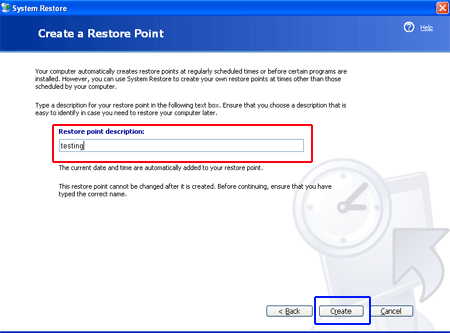
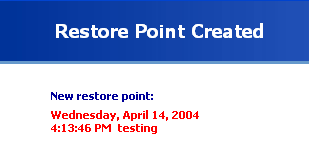
At this point you should type the name you would like this restore point to be referred as in the field designated by the red box. The current date and time will automatically be appended to the name you choose. When you are done, press the Create button designated by the blue box. System restore will create the restore point and give you a confirmation screen with information like Figure 6 below.


Figure 6. Manual Restore Point Created

At this point you can press the Close button to close the System Restore utility.


Restoring Windows XP to a previous State
To restore Windows XP to a previous restore point you need to open the System Restore Utility. To open the utility, go to your System Tools group under Accessories in your Programs menu. Then click on the System Restore icon. You will be presented with a screen similar to Figure 3 above.
You should select the radio button that is labeled "Restore my computer to an earlier time", which is designated by the red box. When that is selected press the Next button. You will then be presented with a screen similar to Figure 7 below.

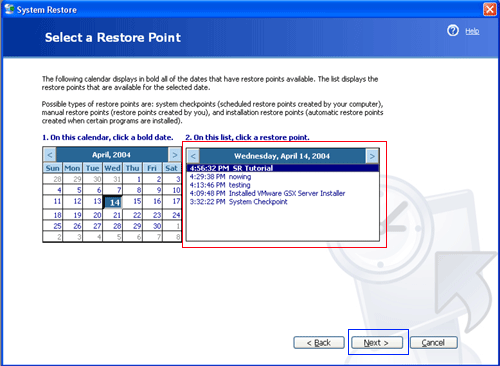
Figure 7. Select a Restore Point

At this point you should select a restore point that you would like to restore. If a particular day has any restore points created on it the date will be in bold. You can then select the restore point by clicking once on its name, as designated by the red box in Figure 6 and then pressing the Next button.

At this point you will prompted with a confirmation as to whether or not you want to continue. If you do want to continue, you should press the Next button again, otherwise press cancel. System restore will then shut down all open applications and reboot the computer.
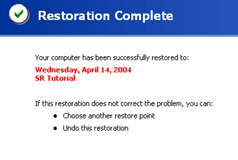
After the computer is rebooted you will see a screen that contains information as shown Figure 8 below confirming that the restoration to the restore point is complete.

Figure 8. Restoration Complete

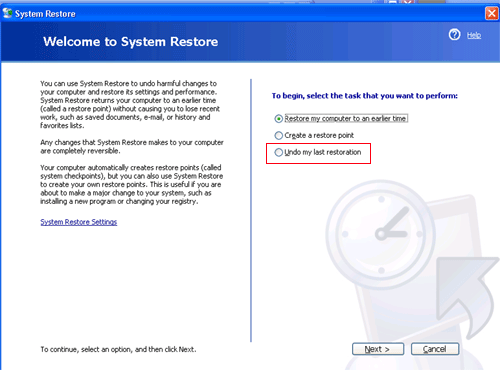
If there are any problems with your computer since you restored to this restore point, you can revert back to your previous settings by going back into the System Restore Utility and selecting the "Undo my last restoration" radio button and pressing the Next button as show in Figure 9 below.


Figure 9. Undo your last Restoration

Deleting Restore Points

There are three known safe ways to delete restore points stored on your computer. These ways are described below:

Disk Cleanup - Launch the Disk Cleanup tool and then select the more options tab. On this tab you will find a section for System Restore. If you press the Clean Up button for that section, Windows will delete all restore points except for the most recent one.

Turn off System Restore - Just by turning off System Restore all your restore points will be deleted. Unless you want this to happen, be careful that you don't mistakenly delete all your restore points by disabling system restore.

System Restore runs out of storage space - If system restore runs out of the storage space that has been allocated towards its use, it will delete the oldest restore point in order to create space for the new restore point.

Problems with System Restore
There are some problems associated with System Restore when it comes to viruses. When restore points are created they are stored in a directory that is accessible only to the System account and not to a user. This keeps the restore points safe from misuse and tampering. Unfortunately this also means that any virus scan software you may have installed can not scan the files located there as well. This causes a problem if a file that is infected with a virus gets backed up into a restore point because now the anti-virus software can not clean it. Now if you ever restore from a restore point, that file that is infected will be introduced back into your system.
With this in mind, if you find that you are infected with a virus, hijacker, or spyware and want to make sure you do not get reinfected if you restore a restore point, you should turn System Restore off and then back on again to clear all the restore points. This will guarantee that their are no infected files that could be restored.

Advanced Info

WARNING: Information found in this section is for advanced users only. If you use this information without advanced knowledge of your operating system you can cause serious damage to your Windows installation.

All restore points are stored in a folder that starts with _restore in the System Volume Information folder found in the root of your individual partitions. This folder is used to store copies of your registry, files, configs, etc. The system volume information folder is only accessible to the System account by default. You can access this folder, though, by adding yourself to the security permissions of this account. Though its advised that you do not do so, I am sure that some of you will poke around in there anyway. Remember, doing this is at your own risk.

Most of the configuration options for System Restore can be found at the following registry key:
HKEY_LOCAL_MACHINE\SOFTWARE\Microsoft\Windows NT\CurrentVersion\SystemRestore
One interesting key you can change here is the interval Windows uses to make an automatic restore point. By changing the value, which is the total seconds between automatic restore point creation, you can make Windows create restore points more often or less frequent. The default value is 86400, which in seconds corresponds to 24 hours between each automatic restore point creation.
HKEY_LOCAL_MACHINE\SOFTWARE\Microsoft\Windows NT\CurrentVersion\SystemRestore\RPGlobalInterval

For more information on the registry keys used by System Restore read this Microsoft Knowledgebase article:

The Registry Keys and Values for the System Restore Utility

You can also specify what registry keys should not be restored and what files should not be backed up by System Restore.

These registry keys are:
HKEY_LOCAL_MACHINE\SYSTEM\CurrentControlSet\Control\BackupRestore\FilesNotToBackup
HKEY_LOCAL_MACHINE\SYSTEM\CurrentControlSet\Control\BackupRestore\KeysNotToRestore

The values contained in the FilesNotToBackup key are files or directories, in which you can specify wildcards as well to exclude all files in a particular directory. Any files listed in this way will not be added to a restore point when one is created.
The values contained in the KeysNotToRestore key are registry keys that should not be restored if you ever restore your computer to a previous restore point.

Windows Vista and 7 users
In the Start search box type System Restore and press enter.

Just like old version of Windows, recent ones are also having the tool System Restore. System Restore for Windows Vista or Windows 7 can overwrite damaged configuration, files and programs with an unspoiled version if you enabled System Restore forWindows Vista or 7. This procedure is only effective if a restore point is present on the computer. Thus, it is vital to have an organized restore points with descriptive changes and type of update performed on the computer.
To restore Windows Vista or Windows 7 to an earlier date please follow these guidelines:
- Log-on to Windows with Administrative rights.
- Click on Start.

 -In the search box, type System Restore and click System Restore on the results.

Alternatively, you may type rstrui.exe and press Enter on the keyboard.

Search System Restore

When I run system restore I get a message saying no restore points are available
A computers System Restore points could be deleted by any of the below possibilities. Unfortunately when the system restore points are deleted or removed they cannot be recovered. 
  1. The Microsoft Windows XP System Restore option was disabled on the computer.
  2. The computers hard drive is out of disk space or low on disk space.
  3. Microsoft Windows has been reinstalled.
  4. The restore point reached is maximum age of 90-days.
  5. The "Clean up" option under the Disk Cleanup has been ran. When this option is performed it will remove all restore points.
  6. The computers version of Microsoft Windows has been upgraded to a newer version of Windows. The Windows System Restore option is not designed to revert your computer back to an older version of Windows and when an update is ran it will disable any previous system restores.

Comments System

Disqus Shortname